

Find Your Program






Online Learning
St. Mary’s also offers some fully online programs year-round. Our experience in traditional learning gives St. Mary’s the solid foundation needed to provide excellence in online learning as well.
St. Mary’s University graduate-level online learning provides a flexible opportunity for individuals interested in academically rigorous and rewarding courses. Our programs integrate top-notch academics and the University’s mission of cultivating ethical leaders committed to the common good.
Discover the St. Mary’s Edge
Academics at St. Mary’s
St. Mary’s Core Curriculum
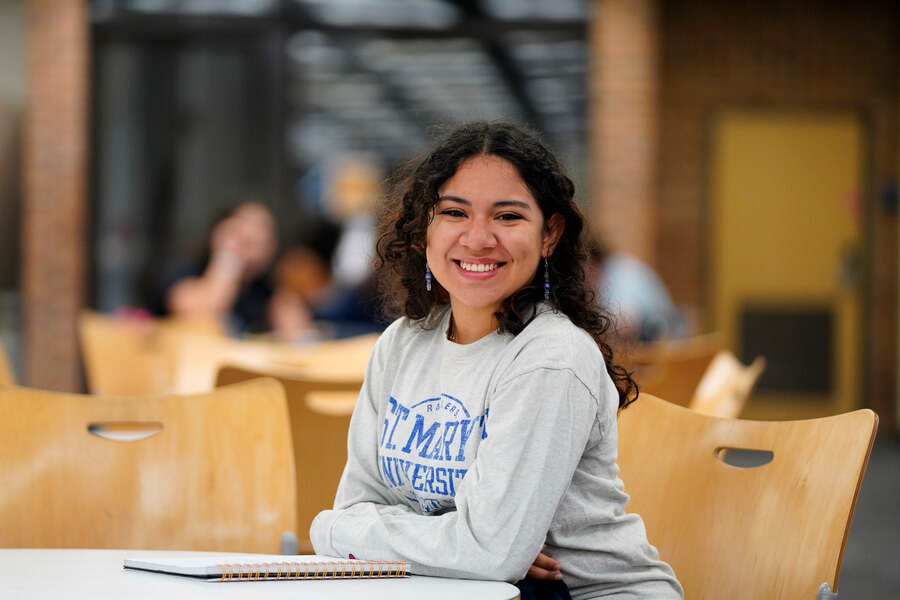
In the spirit of our Marianist heritage, St. Mary’s University strives to educate the whole person – mind, body and spirit.
Our Core Curriculum fosters the pursuit of truth and truthful action; unity and integration of knowledge, including the harmony between faith and reason; the preparation of students for a world of adaptation of change, and more.

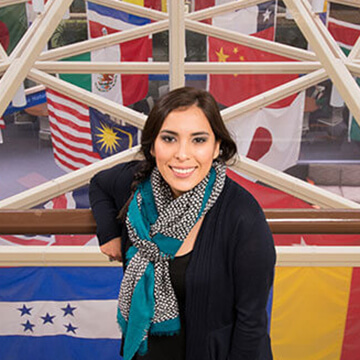
Study Abroad
When studying abroad at St. Mary’s, students are introduced to new experiences, meet new people and access materials that aren’t available on campus.
On a program led by business faculty, students visit corporations, meet with industry leaders and engage in design projects. A fine arts class may be primarily conducted in museums, archives or backstage at a national theater.
Research
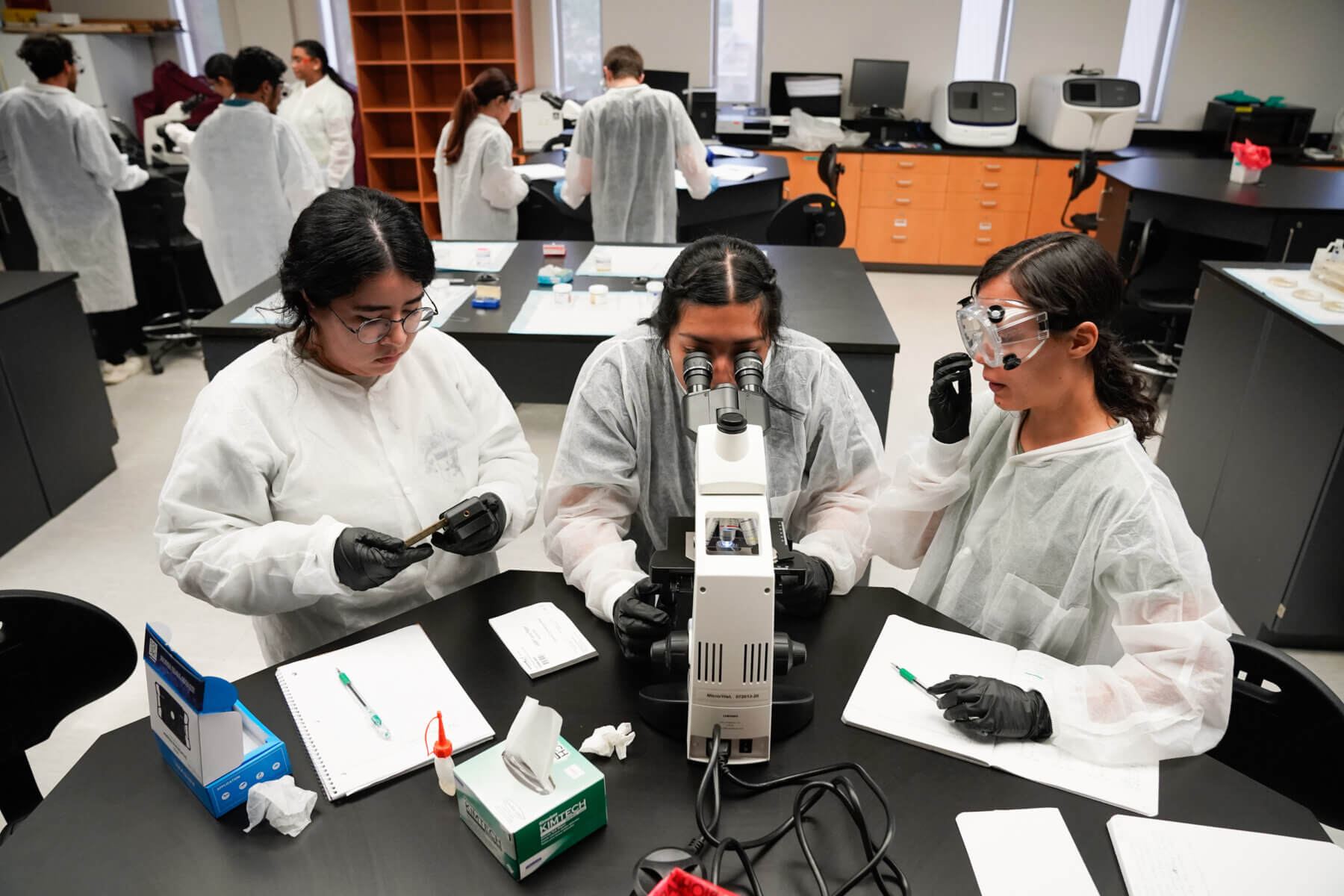
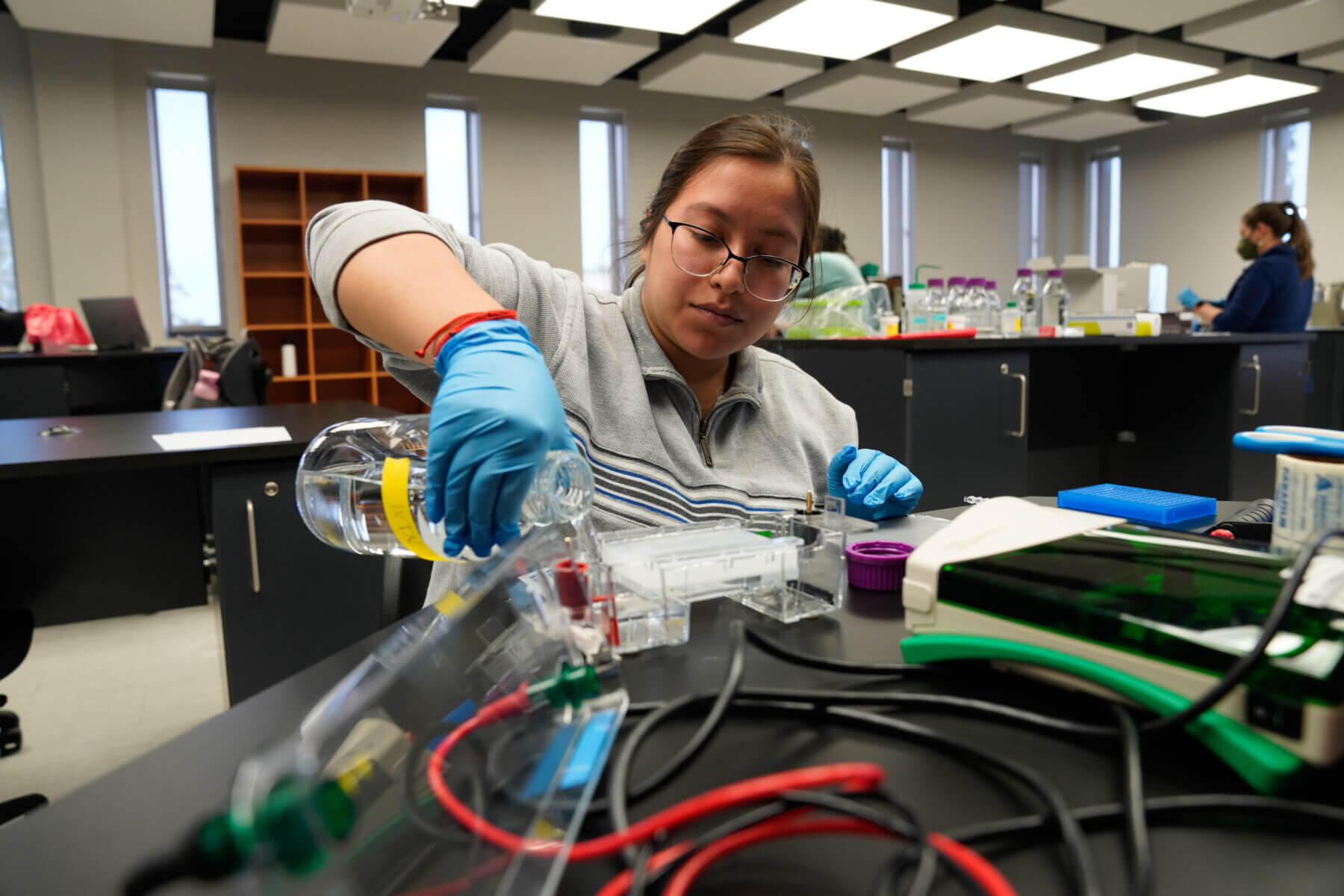
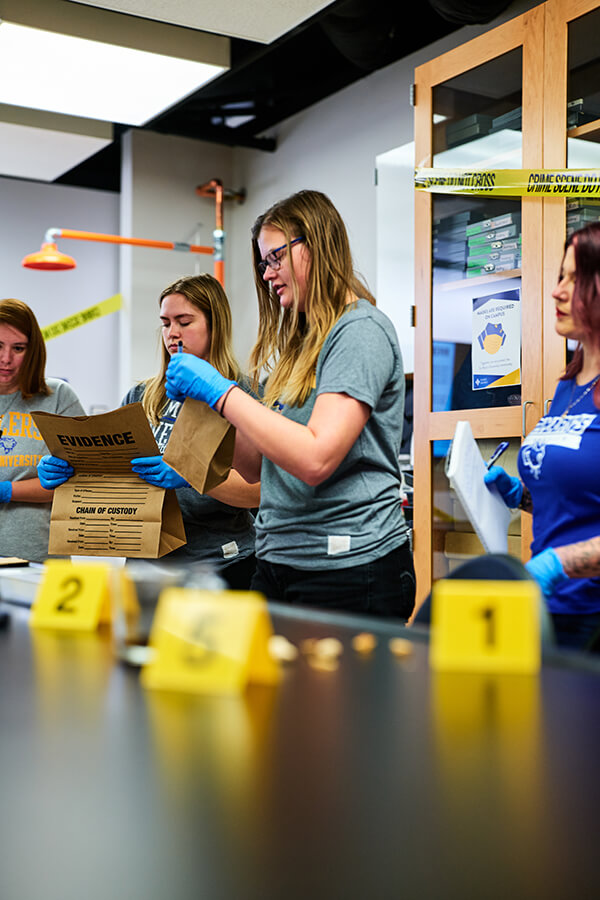
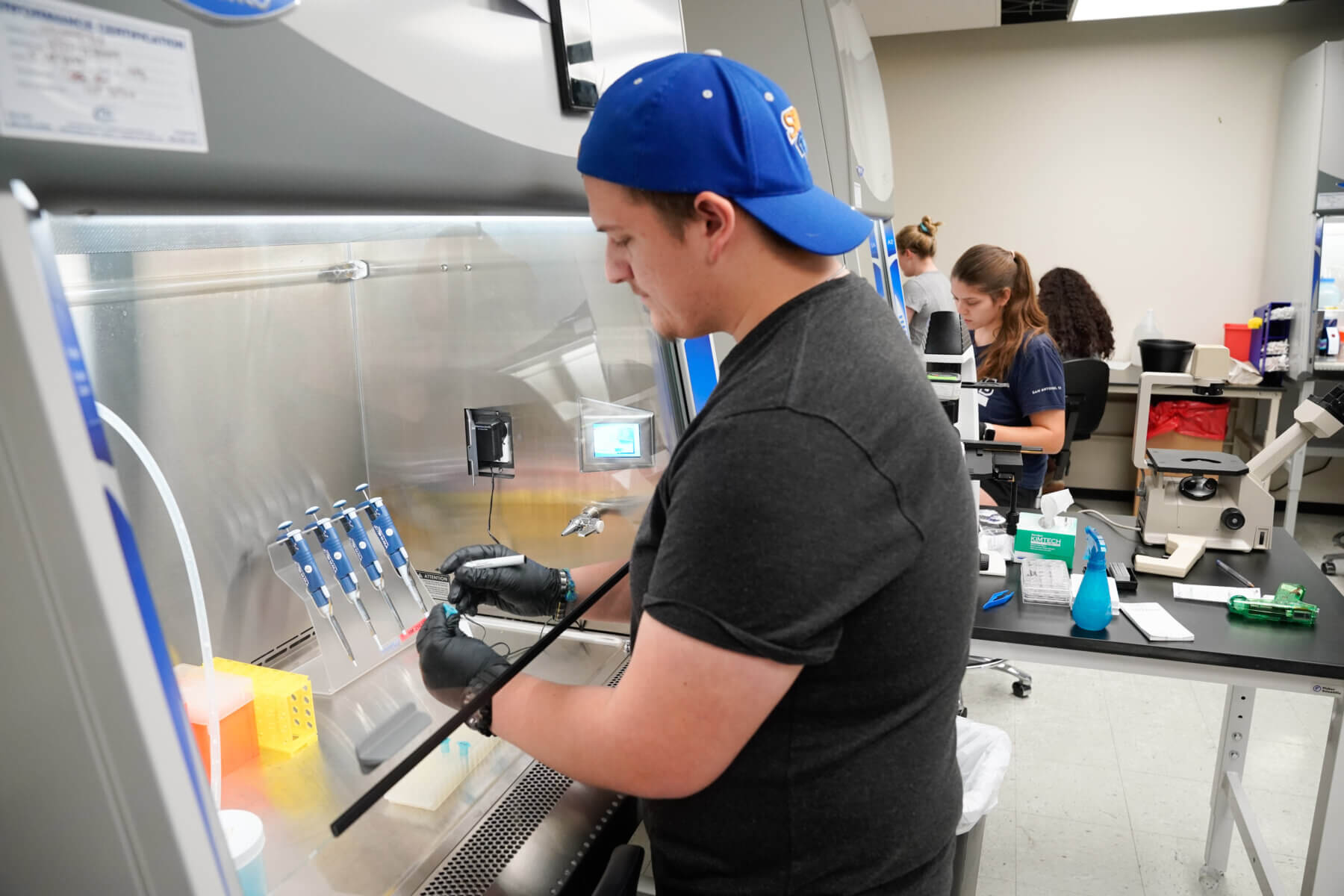
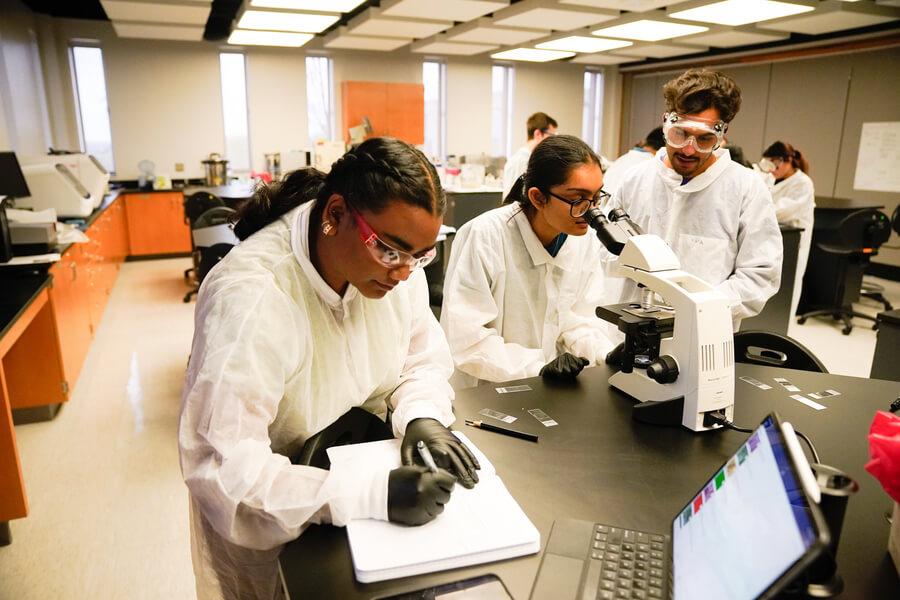
St. Mary’s University promotes transformational learning through its support of research, and creative and scholarly activities for faculty and students at the graduate and undergraduate levels.
Research enhances critical thinking skills and provides hands-on experience for students entering the job market or advanced degree programs.
Honors Program
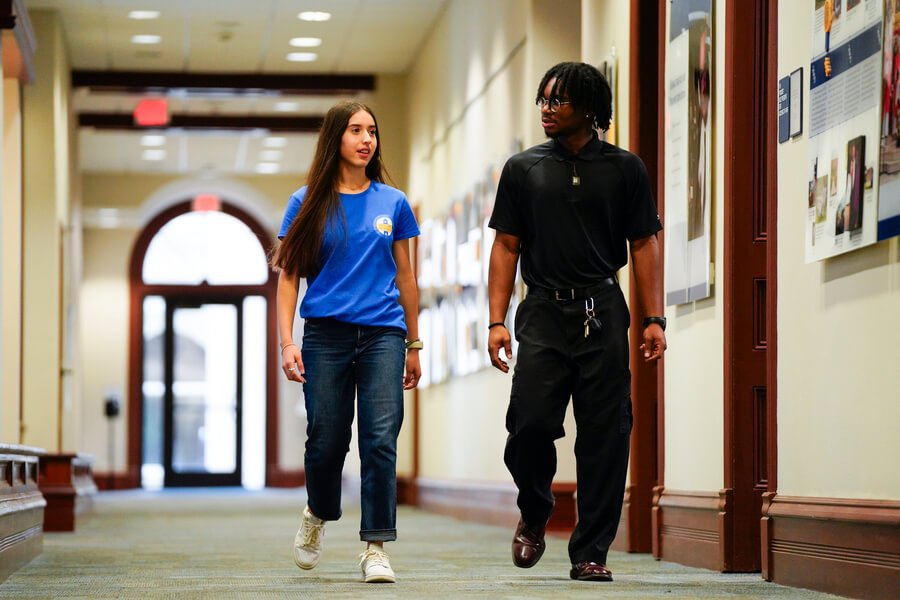
Students in the St. Mary’s Honors Program have the opportunity to study abroad, participate in research, and even live with other Honors Scholars. The Honors curriculum includes once-per-semester courses including those in the social and natural sciences, aesthetics and theology. We also offer a stimulating variety of activities ranging from plays and concerts to community service projects and social events.



Special Programs
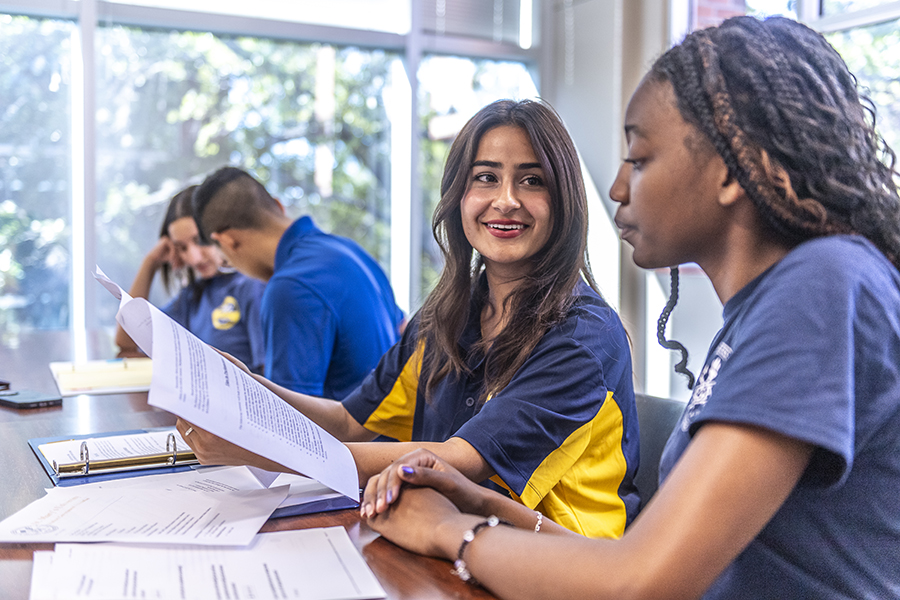
To enhance student learning and opportunities, St. Mary’s University offers several programs to assist students in achieving their educational and career goals.
Combined and Joint Degrees
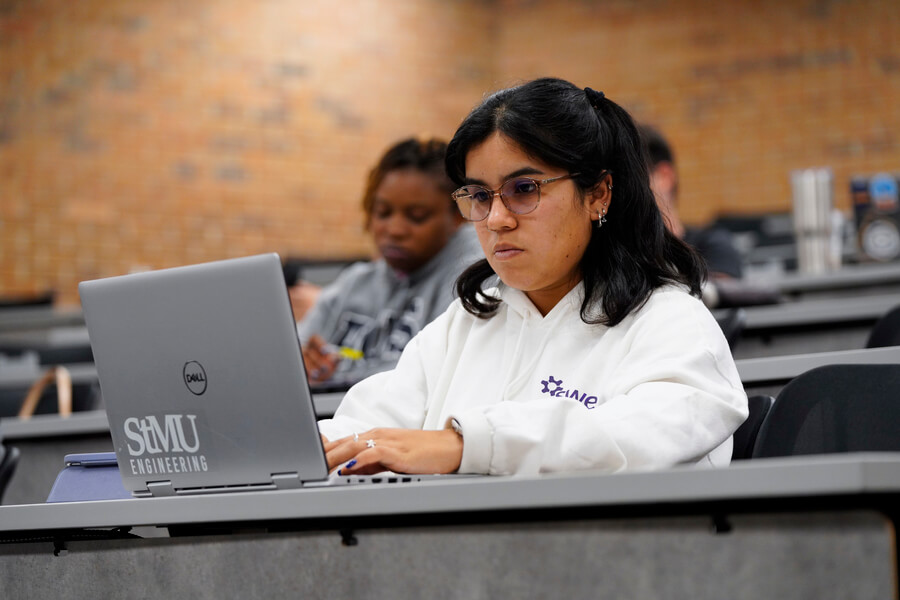
St. Mary’s offers Combined Degree and Joint Degree Programs that allow undergraduate and graduate students to pursue two degrees simultaneously, saving both time and money.
Learning Centers

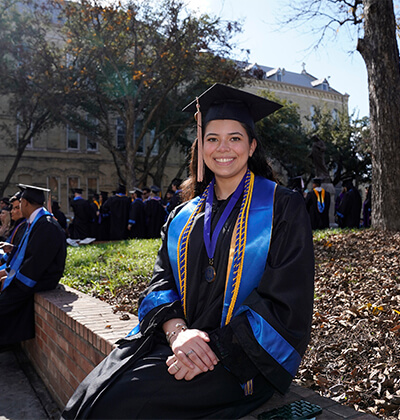
Whether I was taking classes in-person or online, the professors were always generous in engaging students in discussion, encouraging peer collaboration, and helping students grow professionally through research projects and career advice.”
Isabella “Bella” Tamez (B.B.A. ’23)
Preview Academics at St. Mary’s
See for yourself an example of what academic excellence looks like at St. Mary’s University. We invite you to picture yourself finding your vocation in our state-of-the-art classrooms.